
Quiz.video product guide
How to make a quiz video
A clear quiz video asks one question at a time, gives people a fair chance to answer, and makes the reveal easy to follow. This guide walks through the actual Quiz.video workflow, from a source or topic to a downloadable video.
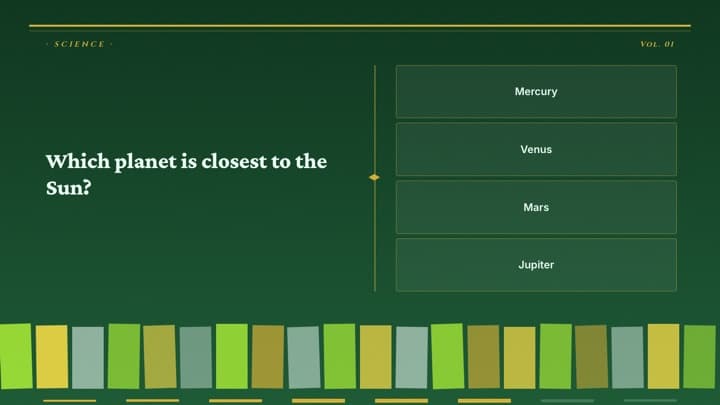
1. Choose a focused topic or source
A narrow brief makes the draft easier to review. Instead of “science,” try “five beginner questions about the water cycle, with short explanations.” Choose an audience and difficulty, and specify anything to exclude. Use the AI quiz generator for a topic, PDF to quiz for a document, or text to quiz for your notes.
For source-based questions, check that the text was extracted correctly. Scanned pages, complicated tables and unclear audio may need cleanup. Keep the original source beside the editor.
2. Check every question and correct answer
Treat AI output as a draft. Verify facts, names, numbers and units. Ask one thing per question and avoid clues that accidentally reveal the answer. For multiple-choice questions, use plausible wrong options and confirm exactly one correct choice.
Worked example
Question: Which process turns liquid water into water vapour?
Options: Condensation · Evaporation · Freezing · Precipitation
Correct answer: Evaporation.
Keep the reveal short: “Evaporation turns liquid water into water vapour.” This adds an explanation without repeating every option.
3. Choose the layout for your audience
Choose portrait for a mobile-first video or landscape for a presentation. Browse quiz video templates and inspect the answer scene as well as the question. Long answers need more room than one-word options. Increase contrast, shorten dense sentences, and check the preview at phone size.
For a picture quiz, use images you have permission to use. Check the crop and leave enough space for the question. Avoid a filename, caption or visible label that gives away the answer.
4. Listen to the narration
Choose the spoken language and listen to sample voices before selecting one. Adjust speed for the wording and audience. Test names, abbreviations and dates: the voice that sounds best in a sample may need a different script for technical terms.
The spoken-language setting controls pronunciation; it does not translate your quiz. When you need different spoken wording, edit the narration script. Keep background music quiet enough that the question stays understandable.
5. Preview the whole question-and-reveal sequence
Wait for edits to save before opening the preview. Watch from the first question to the last reveal. Check that speech finishes, the countdown allows thinking time, and the correct answer stays visible long enough to read. Fix any clipped image, crowded answer or awkward pause before rendering.
Do not pick timing only to reach a target duration. Read a question and its options aloud, then allow additional time for the viewer to decide. Questions with calculations or unfamiliar vocabulary need more time than quick visual recognition.
6. Render, download and publish deliberately
Render the video and wait for completion. Download the MP4 and play it once to check audio, framing and the final answer. Upload it to your own TikTok or YouTube account, then set the cover and caption there.
An MP4 is a watchable video. If you want people to click answers, deliberately publish the separate interactive quiz and share its public link. Rendering alone keeps the quiz’s existing visibility setting.